
RollerTrack support
Set up and
rolling.
Everything you need to install, pair and update your RollerTrack. Prefer paper? This page prints cleanly.
What's in the box
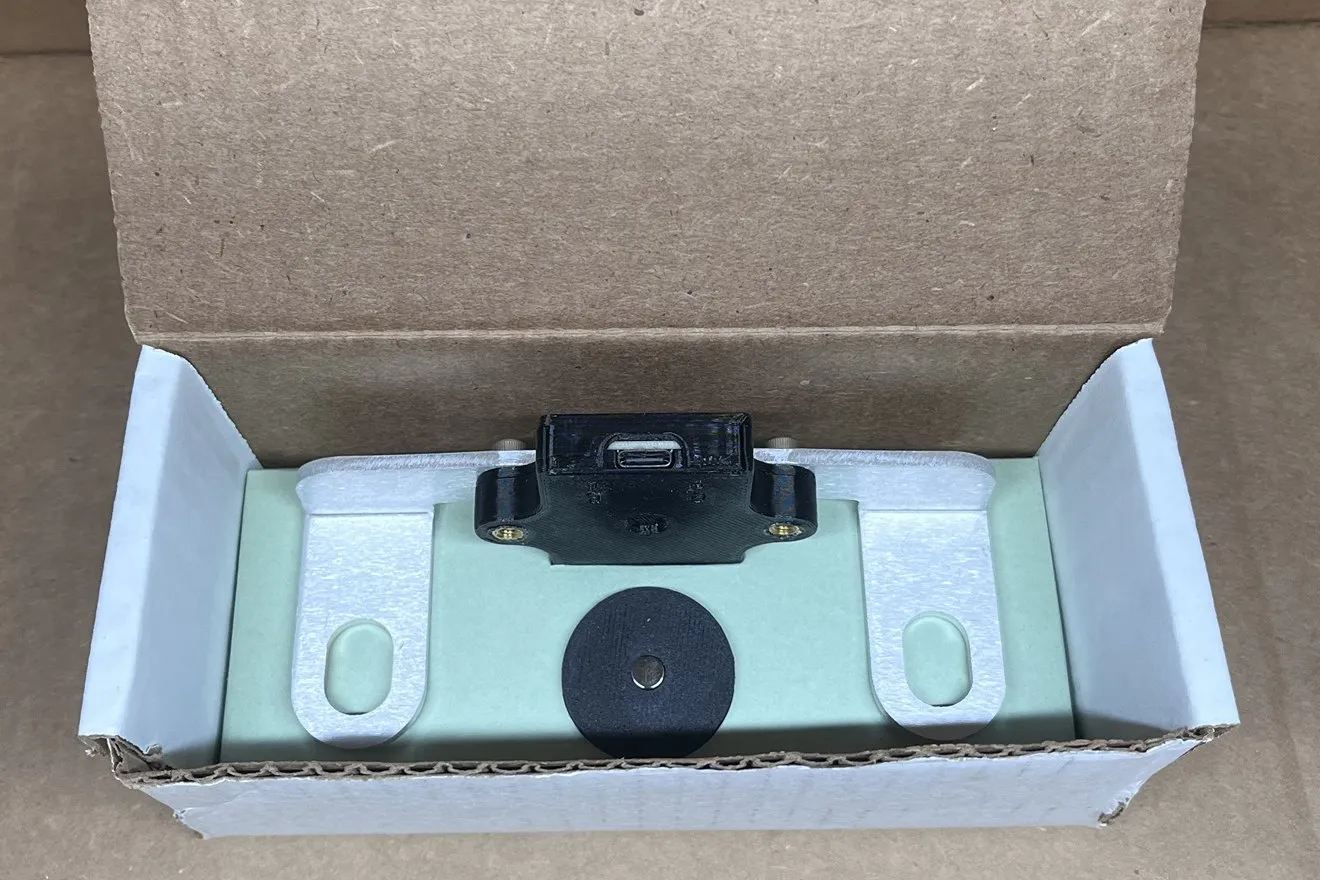
- RollerTrack sensor, preinstalled on an aluminum mount
- Magnet and aligner assembly
You'll also need: a USB-C cable and a USB power adapter (not included) plus the free RollerTrack app.


Installation
RollerTrack bolts onto your roller using the bolts already holding the bearing block. Allow 15 to 30 minutes.
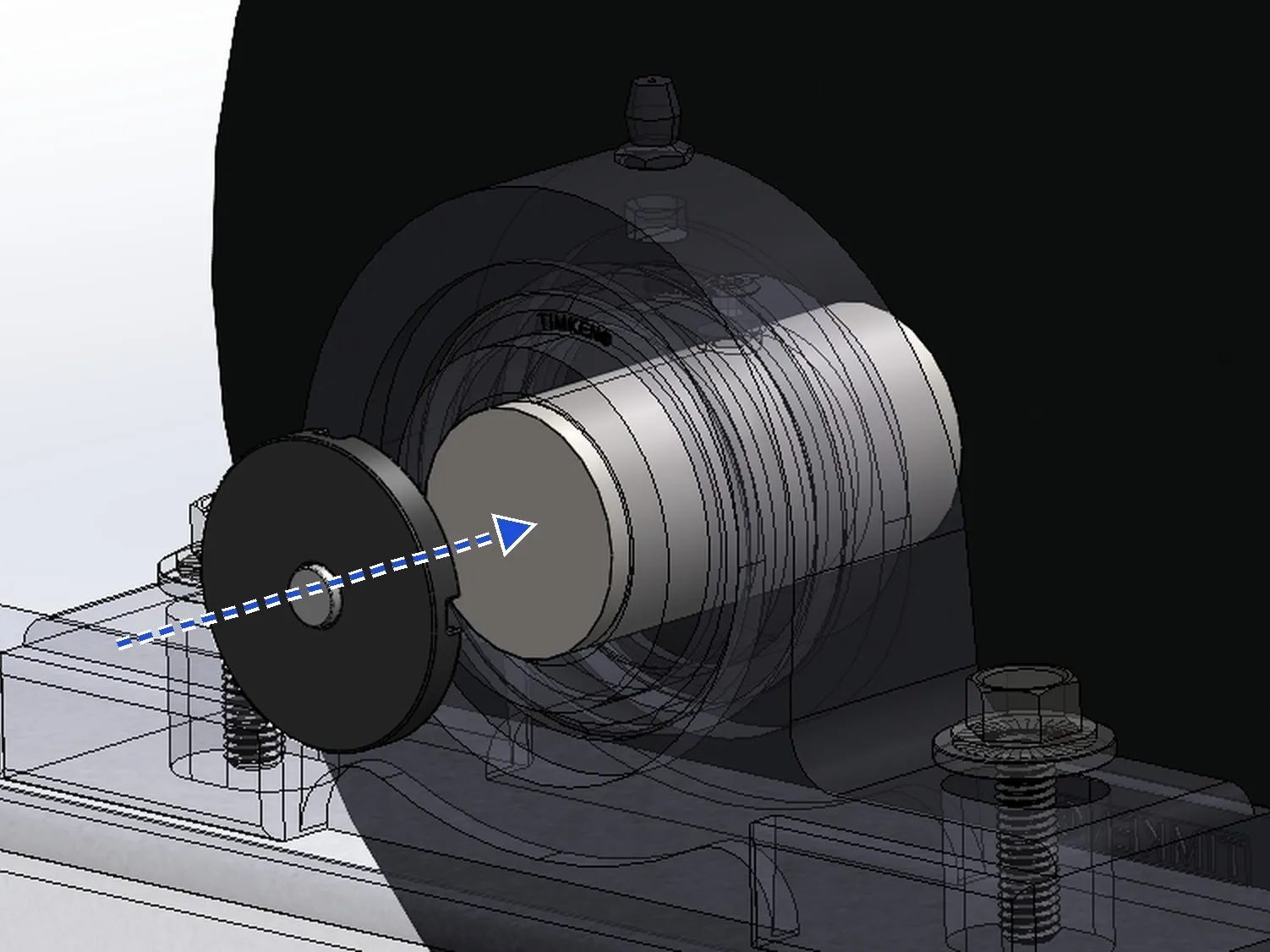
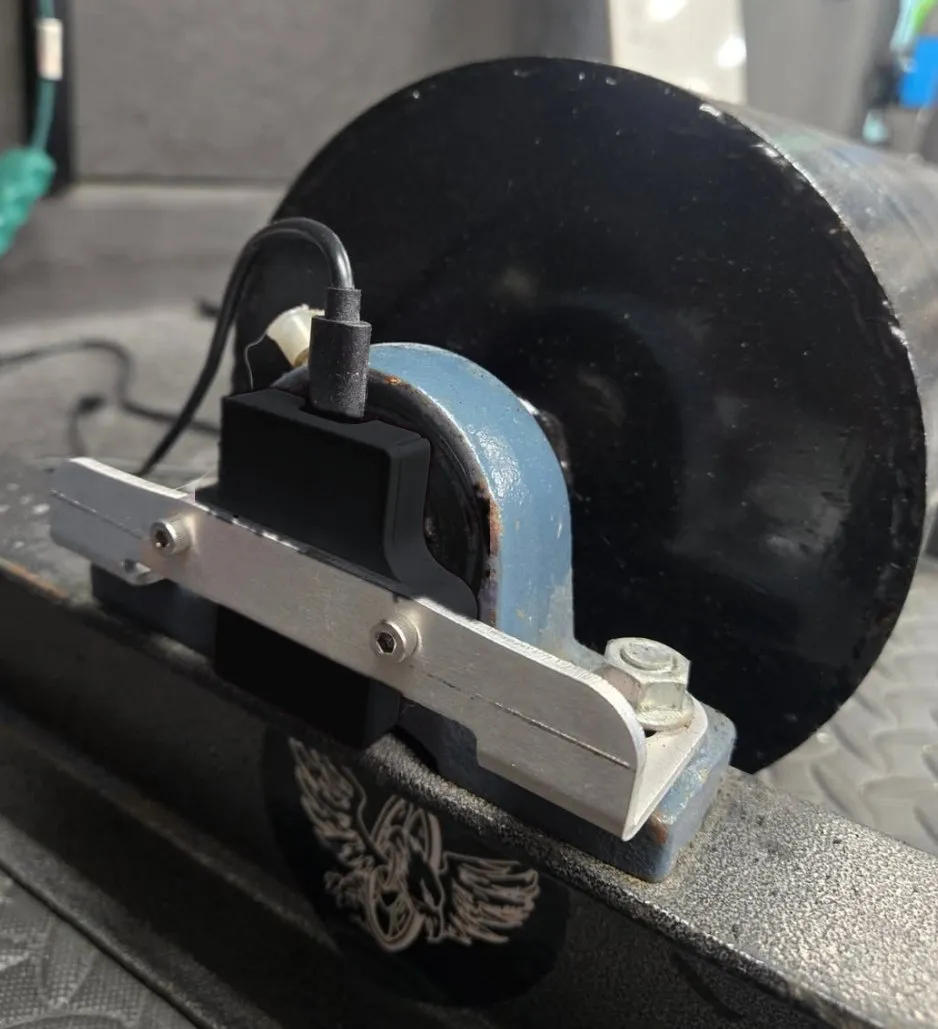
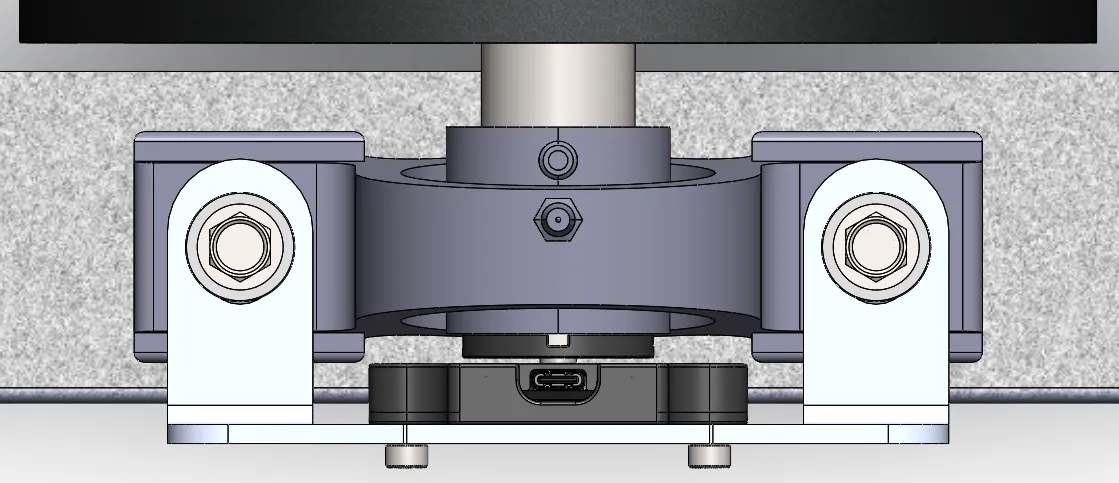
- Step 1: Pick which side of the roller to mount on. Route the USB-C cable so it stays clear of the wheel.
- Step 2: Optional: mark the bearing block's position on the frame before loosening anything so it doesn't shift.
- Step 3: Slide the magnet and aligner onto the roller shaft so the magnet is centered. A drop of superglue holds it in place. Only use glue if you won't need to remove it.
- Step 4: Loosen and remove the bolts holding the bearing block to the frame.
- Step 5: Set the RollerTrack mount on the bearing block with its slots lined up over the mounting holes.
- Step 6: Put the bolts back and tighten them until snug. Don't fully tighten yet.
- Step 7: Center RollerTrack over the magnet so it sits close to and parallel with the aligner. The magnet should sit inside the housing's indent without rubbing.
- Step 8: Check the bearing block against your marks.
- Step 9: Tighten the bolts fully and spin the wheel to make sure nothing rubs.
Pairing
- Step 1: Plug in USB-C power. The red power light comes on and the white pairing light blinks. No blinking? Unplug and replug it or press the reset button marked R with a pin.
- Step 2: Open the menu at the top left of the app and go to Settings.
- Step 3: Under Device, find Bluetooth Connection and tap Start Scan.
- Step 4: Choose RollerTrack from the list.
- Step 5: That's it. The app remembers your RollerTrack and reconnects on its own next time.
Settings
Find these in the app under Settings. Defaults are listed so you can always get back to them.
Workout behavior
-
Split lengthDefault: 100 m
How often a split is recorded in Free Roll and Timed workouts, from 50 m to 5000 m. Distance events use their standard splits automatically.
-
Auto-pauseDefault: 5 s
Pauses the timer after this long without movement. Set it to Never to turn it off.
-
Resume after movingDefault: 5 m
While paused, the workout picks back up once you roll this far.
-
Ask before resumingDefault: On
Asks you to confirm before an auto-paused workout restarts.
-
Keep screen onDefault: On
Stops your phone from sleeping during a workout.
Audio and haptics
-
Spoken cuesDefault: Off
Turns on voice announcements. Choose which ones you hear: splits, pause and resume, and finish or new records.
-
Haptic tap on splitDefault: On
A short vibration each time a split is recorded.
Virtual pacer
-
Enable virtual pacerDefault: On
Shows how far ahead of or behind your record you are during a distance event.
-
Audible gap at each splitDefault: Off
Reads out the gap to your record at every split. Needs spoken cues turned on.
Display and units
-
Show roller RPMDefault: Off
Adds the roller's RPM to the live workout screen.
-
Distance unitsDefault: Meters
Meters, miles or kilometers.
-
Speed unitsDefault: MPH
MPH or KPH.
-
Custom distance presets
Save named distances like "My Loop" to pick from in Distance Events.
Device
-
Bluetooth connection
Scan for your RollerTrack, connect or disconnect.
-
Device name
Rename your RollerTrack. Tap Identify to make its white light blink rapidly so you can spot which unit you're connected to.
-
Update firmware
Shows your firmware version and installs updates over the air.
Data and export
-
Health syncDefault: Off
Saves workouts to Apple Health or Health Connect once you allow access.
-
Manual workout exportsDefault: Off
Adds TCX and CSV export to each workout for Strava, Garmin and other apps.
-
Backup
Export your full history to a file or restore it on a new phone. Restoring replaces everything currently in the app.
Advanced
-
Roller diameterDefault: 7 in
The diameter of your roller drum. If speed and distance look off, measure your drum and enter it here. A larger value reports higher speed and distance.
-
Logging rateDefault: 1 Hz
How many samples per second feed your workout charts, from 0.2 to 5 Hz.
Compatibility
Owners have confirmed RollerTrack on the Eagle Pro Roller and the Revolution Sports Standard Roller. Using something else? Tell us about your roller and we'll check the fit.
Troubleshooting
It doesn't show up when I scan
Check that the red power light is on and the white pairing light is blinking. If the pairing light is off, unplug and replug RollerTrack to put it back in pairing mode. Then scan again.
Something rubs after installing
Your roller shaft may stick out further than the mount was designed for. Once the magnet is in place, you can remove the black aligner for more clearance. If you do, glue the magnet to the shaft so it can't move.
Speed or distance looks wrong
Set the roller diameter in Settings to match your roller. The default is 7 in.
How do I update the firmware?
Updates install over the air. In the app, go to Settings and tap Update Firmware under Device. Your current version is shown there too. If an update doesn't finish, you can install from a PC with the files in Firmware downloads.
Firmware downloads
Prefer a wired update? Install firmware from a Windows PC with these files. They're also your recovery path if an over-the-air update doesn't finish.
| Version | Released | What changed | File |
|---|---|---|---|
| 1.4.0Latest | Over-the-air updates | Download zip for version 1.4.0 | |
| 1.3 | Device renaming | Download zip for version 1.3 | |
| 1.2 | Bluetooth connection light | Download zip for version 1.2 | |
| 1.1.1 | Added hysteresis to the smoothing bands to try and reduce false speed dips | Download zip for version 1.1.1 | |
| 1.1.0 | Improved low speed motion rejection to reduce stationary drift | Download zip for version 1.1.0 | |
| 1.0.0 | Download zip for version 1.0.0 |
Releases come straight from our GitHub releases page.
Update from a Windows PC
Sensors on version 1.3 or earlier need this once to get 1.4. From 1.4 on, updates install over the air from the app. You need a Windows PC and a USB cable.
- Step 1: Download the zip for the version you want from the table above and unzip it.
- Step 2: Plug RollerTrack into the PC with a USB cable.
- Step 3: Open RT Firmware Updater.exe from the unzipped folder.
- Step 4: Check the COM port. It’s usually the only one listed. If none shows up, check the cable and click Refresh.
- Step 5: Check the firmware file it found matches the one in the zip. To use a file you downloaded separately, choose custom firmware and browse to it.
- Step 6: Click Flash Firmware and follow the prompts. When it confirms the update, unplug RollerTrack. It’s ready to use.
Not detected? Try another USB port or cable (some cables only charge), click Refresh, or restart the PC. Still stuck? Contact us.
Still stuck?
Send us a message and we'll help you get rolling. Include your roller model and firmware version if you know them.
Need help? Email [email protected] or visit rukavinatechnologies.com/support.